
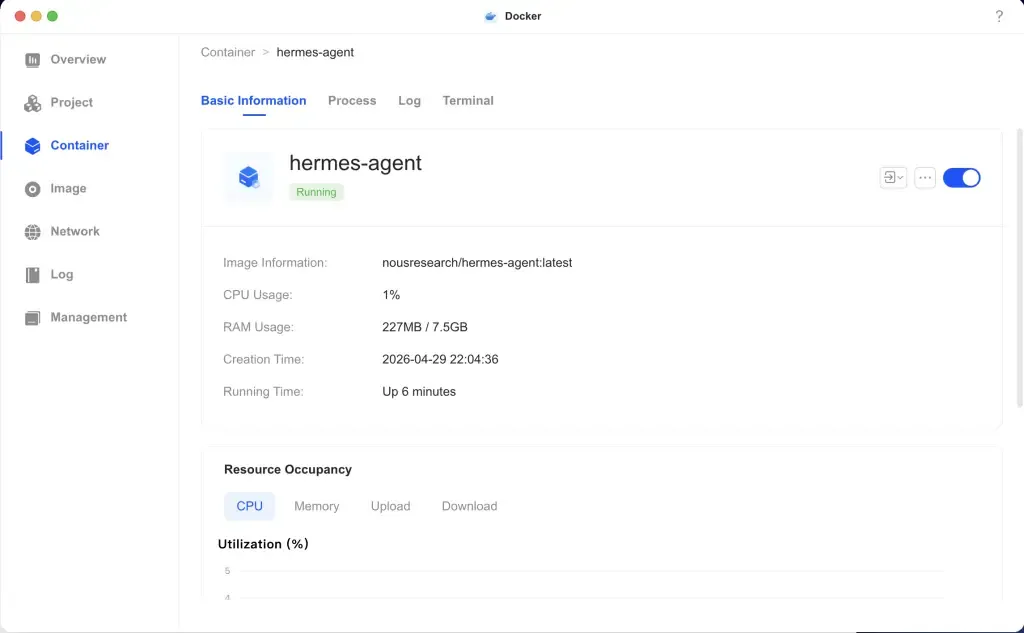
The UGREEN Docker app said Running. Hermes couldn’t read its own configuration.
I wanted Hermes Agent running independently of my laptop, so I put its gateway on my NAS. The container stayed up, but Telegram couldn’t complete a request. The useful clue was in the logs: Permission denied: '/opt/data/config.yaml'.
UGREEN had created the data directory as UID 10000. The image I tested in April ran Hermes as UID 1000. Same files, different users. The gateway couldn’t even enter the directory that held its configuration.
The short version Check the numeric owner of the mounted directory and the user running Hermes. My April values were
10000and1000; don’t assume your image uses either one. “Running” wasn’t enough to tell me the setup worked.
Tested configuration
I pulled latest for the April installation and didn’t record its digest. I can’t give you that exact image now. The screenshot does preserve the idle readings: about 227 MB of RAM and 1% CPU. Those aren’t measurements of an agent doing work.
Hardware used: I run this on a UGREEN NASync DXP4800 Plus. This is an Amazon affiliate link; I may earn a commission from qualifying purchases at no additional cost to you.
| Component | Tested value |
|---|---|
| UGREEN model | UGREEN NASync DXP4800 Plus |
| UGOS version | Last recorded: UGOS Pro 1.18.1.0098; April test version not recorded |
| Hermes Agent | nousresearch/hermes-agent:latest as pulled April 29, 2026; historical digest not recorded |
| Deployment date | April 29, 2026 |
| Memory at idle | Approximately 227 MB |
| CPU at idle | Approximately 1% |
| Access method | Telegram and API server |
For a new installation, pull the image and record its digest before starting setup:
docker pull nousresearch/hermes-agent:latest
docker image inspect nousresearch/hermes-agent:latest \
  --format '{{index .RepoDigests 0}}'
uname -m
Put that immutable name@sha256:… reference in HERMES_IMAGE. The companion deployment files deliberately have no latest fallback.
Architecture: where the agent actually runs
With Hermes’s local terminal backend, a file command runs inside this container. It doesn’t run on the laptop where I sent the message. The mounts decide which host files it can reach. The official Hermes Docker guide also covers Docker as a separate terminal backend; that’s a different setup from putting the gateway itself in Docker.
Deploy one canonical configuration
Use the companion deployment linked above. Its Compose .env holds the image digest and numeric IDs. The setup wizard writes provider and messaging secrets to /opt/data/.env. They’re two files with the same name, in different directories. Don’t put your bot token in the Compose file.
cd /path/to/kahwee-labs/deployments/hermes-agent-ugreen-nas
cp .env.example .env
# Edit .env: set the image digest and the data directory's numeric UID/GID.
docker compose run --rm hermes setup
docker compose up -d
The Compose file publishes no ports and caps the container at 4 GB of memory, two CPUs, and 512 processes. It uses unless-stopped and leaves the image’s entrypoint intact. As of the August 31 documentation check, that entrypoint initializes the volume and drops the gateway to the hermes user. Overriding it skips setup the gateway needs.
The April image used a different first-time setup path. From the UGREEN Docker UI I opened Container → hermes-agent → Terminal → Add → /bin/bash, then ran:
./setup-hermes.shI removed the terminal screenshot because its prompt included a container identifier. That setup sequence was from April. For a new installation, use the Compose setup command above, not the old shell script. I checked the current instructions against the official docs on August 31; I haven’t repeated the hardware test with a newly pulled image.
Diagnose the healthy-container failure
The important line in Compose is the bind mount:
volumes:
  - /volume1/docker/hermes:/opt/data
For example, /volume1/docker/hermes/config.yaml on the NAS appears as /opt/data/config.yaml inside the container. It’s the same file, not a copy. Docker’s bind-mount documentation explains that mapping.
I inspected the host mount over SSH:
ls -ldn /volume1/docker/hermes
# drwx------ 1 10000 10000 ... /volume1/docker/hermes
The -n matters: it prints numeric IDs rather than usernames. In that April image, the container-side check returned a different UID:
docker exec hermes-agent id
# uid=1000(...) gid=10(...)
Mode 700 gives the owner access and gives everyone else none:
| Check | April result | What it meant |
|---|---|---|
| Host directory owner | UID 10000 | This user could enter the directory |
| Directory permissions | 700 (rwx------) | No group or other-user access |
| Hermes runtime user | UID 1000 | Couldn’t enter the directory to open the config |
The permission check failed before Hermes could read config.yaml or .env. The log matched that explanation:
Permission denied: '/opt/data/config.yaml'Restarting the same image with the same mount wouldn’t change either ID. I needed them to agree.
The current official image documents UID 10000 as its default and supports HERMES_UID and HERMES_GID. My 1000:10 output is historical evidence, not a setting to copy into a new installation.
Apply the permissions fix safely
For a new installation, set HERMES_UID and HERMES_GID in the Compose .env to the intended owner of the data directory. If ls -ldn reports 10000 10000, for example, those are the two values to use.
Once the container is running, check as the gateway’s user explicitly:
docker compose exec --user hermes hermes sh -c '
  id
  test -r /opt/data/config.yaml &&
  test -r /opt/data/.env &&
  echo "Both configuration files are readable"
'
The first hermes after --user is the Linux account; the second is the Compose service name. This checks access without printing either file. A plain docker exec ... id can report root in newer images, which doesn’t tell you whether the gateway can read its config.
If the IDs match and this still fails, inspect the individual files and the logs before changing anything. For an existing installation with wrongly owned config files, stop the service and repair only the paths you’ve checked. The placeholders below are deliberately not runnable values:
docker compose stop hermes

sudo chown <hermes-uid>:<hermes-gid> \
  /volume1/docker/hermes \
  /volume1/docker/hermes/config.yaml \
  /volume1/docker/hermes/.env
sudo chmod 700 /volume1/docker/hermes
sudo chmod 600 /volume1/docker/hermes/config.yaml /volume1/docker/hermes/.env

docker compose up -d
Run the readability check again afterward. Directories need their execute bit for traversal; config files don’t. This repair doesn’t change permissions on installed scripts or other state. If another path fails, inspect that path too. I wouldn’t make the whole tree readable just to get past one error: .env contains the keys that let the agent act as me.
Do not publish the secret Never paste the contents of
.envinto an issue or a log excerpt. Show names and permissions, not values. Rotate any credential that has been exposed.
Secure the gateway before adding tools
Generate the API key on the NAS and save it as API_SERVER_KEY in /volume1/docker/hermes/.env, alongside the bot credentials:
openssl rand -hex 32The API is optional and disabled in the companion deployment. Telegram-only use does not require a published port. If a local API client needs access, the minimal private configuration is:
API_SERVER_ENABLED=true
API_SERVER_HOST=0.0.0.0
API_SERVER_PORT=8642
API_SERVER_KEY=replace-with-the-generated-value
TELEGRAM_BOT_TOKEN=replace-with-your-bot-token
TELEGRAM_ALLOWED_USERS=replace-with-your-numeric-user-id
Hermes denies Telegram users not on the allowlist by default. Do not add an allow-all setting to a bot that can reach terminal or file tools. The official Telegram guide documents the numeric allowlist, and the security guide covers the broader trust boundary.
Start the opt-in compose.api.yaml override, which publishes 8642 only to 127.0.0.1 on the NAS. Reach it remotely through an SSH tunnel, authenticated TLS proxy, or private VPN; do not send the key over plain HTTP on a shared LAN.
Before adding tools, these are the checks I’d keep:
- Keep 8642 unpublished or bind it to
127.0.0.1on the host. The0.0.0.0value above is container-internal only. - Do not port-forward 8642 from the router or expose it directly to the public internet.
- Test that requests without
API_SERVER_KEYare rejected. - Mount only the directories the agent needs; never mount the Docker socket for convenience.
- Prefer read-only mounts until a workflow demonstrably requires writes.
- Treat every enabled tool and skill as code executing against the NAS.
- Review the official API server documentation before connecting another client.
- Enable
tool_loop_guardrails.hard_stop_enabledfor an unattended gateway so repeated failing calls terminate instead of consuming the NAS indefinitely.
Verify the deployment as a system
Run ./verify.sh after startup, but don’t use its plain id and file checks as a substitute for the explicit --user hermes test above. The script checks the container, stored config, secret-file permissions, port exposure, placeholders, and recent permission errors. For the optional localhost API checks, supply API_SERVER_KEY through your private shell environment, then run VERIFY_API=1 ./verify.sh. Don’t paste the key into shell history.
| Check | Command or action | Expected result |
|---|---|---|
| Container | UGREEN Docker UI | Running |
| Gateway | docker compose logs --tail=100 hermes | No configuration permission error |
| Health (API enabled) | VERIFY_API=1 ./verify.sh with the key already exported | Healthy response |
| Authentication (API enabled) | The same API verification | Request without a key is rejected |
| Telegram allowlist | Message from your account | Accepted |
| Delegation | Launch a bounded child task while keeping the parent session open | Child result returns before the parent exits |
| Persistence | Restart the container | Configuration remains |
| Resource use | UGREEN metrics | Record CPU and memory; my idle baseline was 1% and 227 MB |
Do the Telegram check manually because an automated test would need another credential. Also send a message from a non-allowed account if you can do so safely; the expected result is a rejection.
Verify the owner of asynchronous work
I hit a similar problem with Hermes delegation. In a one-shot CLI invocation, the parent launched three children, returned, and shut down. Hermes interrupted the children even though their retained status still appeared to be running. The same batch completed when I kept an interactive parent session alive.
For that test, keeping the parent open was the difference between a recorded running status and a returned result. I wouldn’t rely on a one-shot session for work that has to survive its exit. Recurring jobs need their own schedule and logs; the next decision is which automations need an LLM at all.
What actually failed
The green container badge sent me to the wrong place first. Checking access as the gateway’s user would have made the problem much easier to see.
Once Telegram can complete a request, connecting Hermes to Home Assistant is a useful next test. That’s where I sent “can you turn off all my lights” and could see whether anything actually happened. A light going off tells me more than another green badge.
Changelog
- August 31, 2026Added a worked explanation of the bind mount and UID mismatch, made the runtime-user check explicit, narrowed the permission repair, and clarified which instructions were checked against current docs rather than retested on hardware.
- August 19, 2026Added the parent-process lifetime boundary for asynchronous delegation and a completion check to the verification matrix.
- August 12, 2026Rebuilt the guide around a pinned-image workflow, removed unsafe
755/777advice, documented current Hermes UID behavior, added security boundaries and a verification matrix. - April 29, 2026Published the original UGREEN deployment and UID mismatch.
Was this useful?
Thanks for the feedback.